Account Settings
Team
The Team tab displays all the team members that have access to the account. Each account has one owner that has management privileges for the account. This includes the ability to manage billing and close the account. It is not recommended that this account be used an account to access services on the site in a large organization. This account is denoted by a star in the table and cannot be deleted.
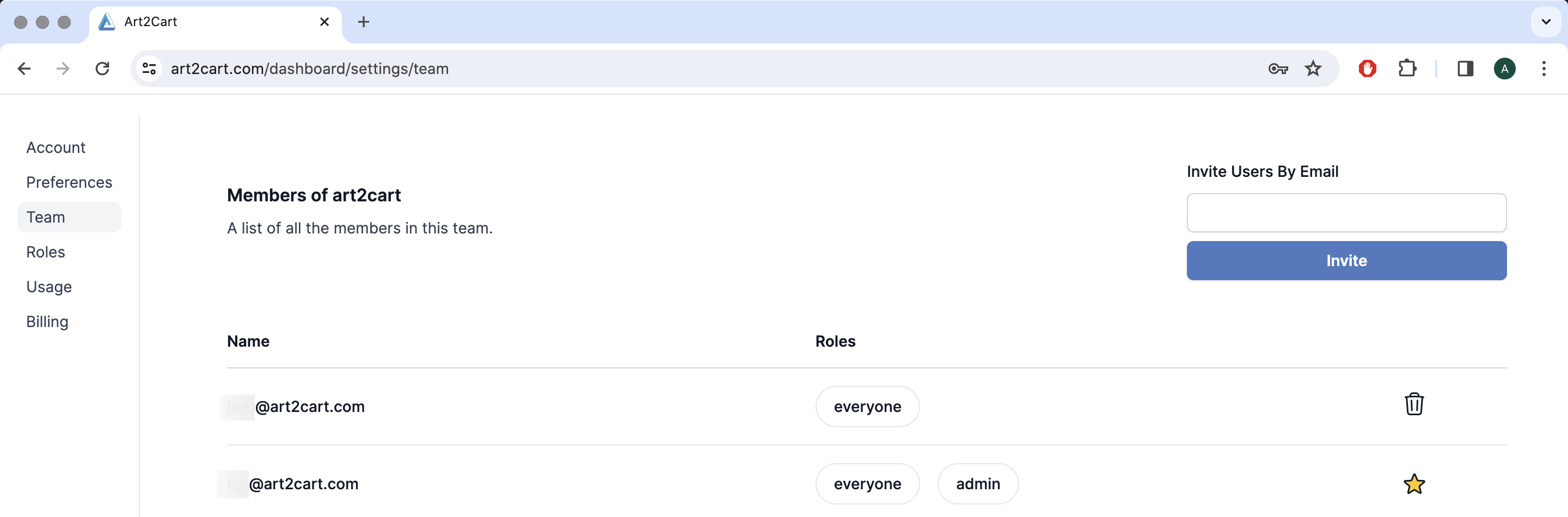
An owner should assign an Administrator account to further manage access to Art2Cart features. An administrator account can create new roles and add/remove users or just add/remove roles from other accounts.
The Team page allows an Admin account to invite other users by email. To do this, enter the name in the input field and click Invite. The invited users will receive an email to confirm and join the team. By default every invited account receives the "everyone" privilege.
Note: Each email address can be a member of only one team. Email forwards and aliases can be used.
Roles
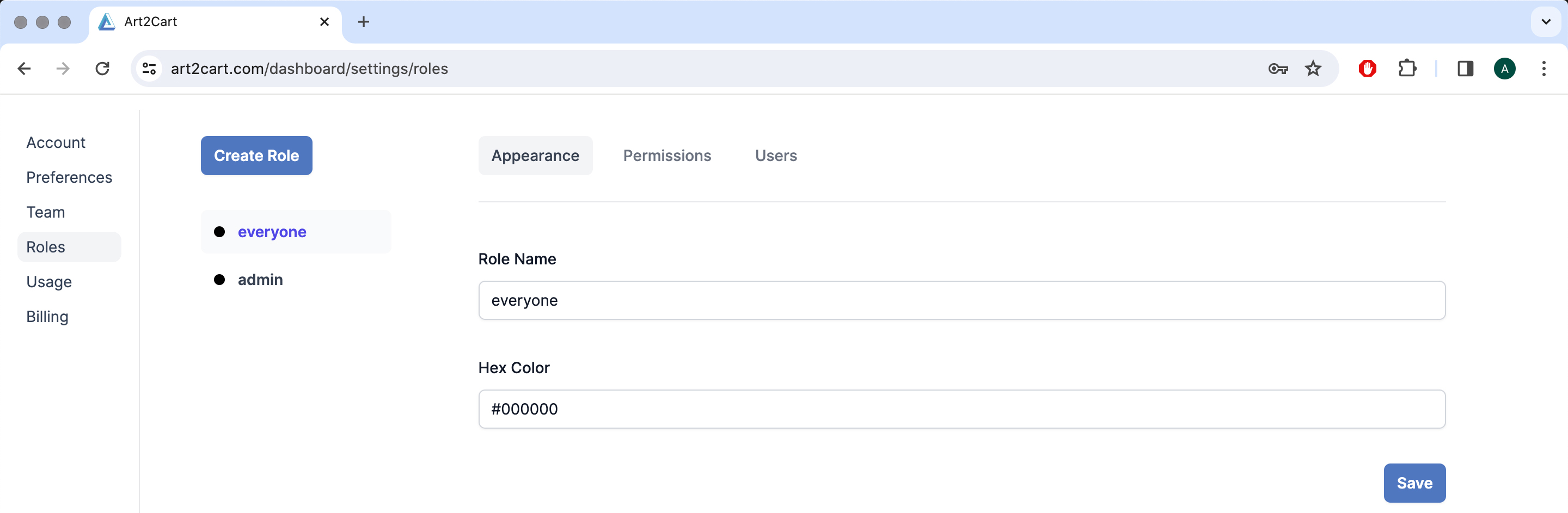
On the Roles tab, account Admins create new roles and assign roles to team members. By default, Art2Cart creates an Admin role and an Everyone role. To create a new role, enter a name for the role. You may select a color its indicator also. Click Save to save the new role
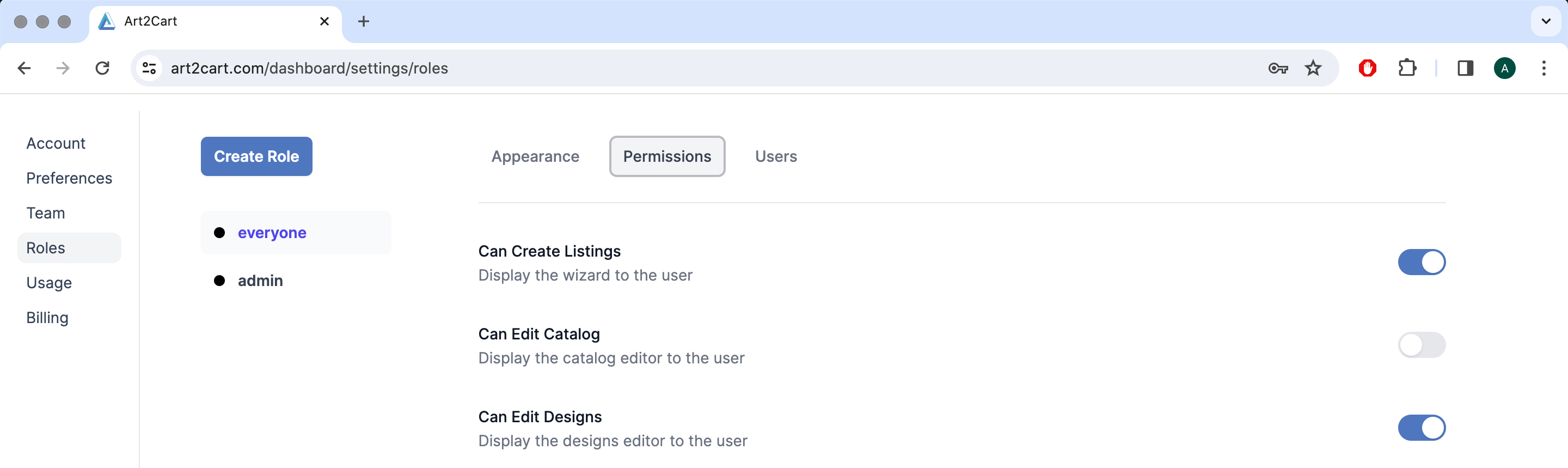
To view or modify permissions for a role, click on the role name and the click on Permissions. On this page, all the permission for a given role can be enabled or disabled. After making changes, you must click Save at the bottom of the page to save your changes.
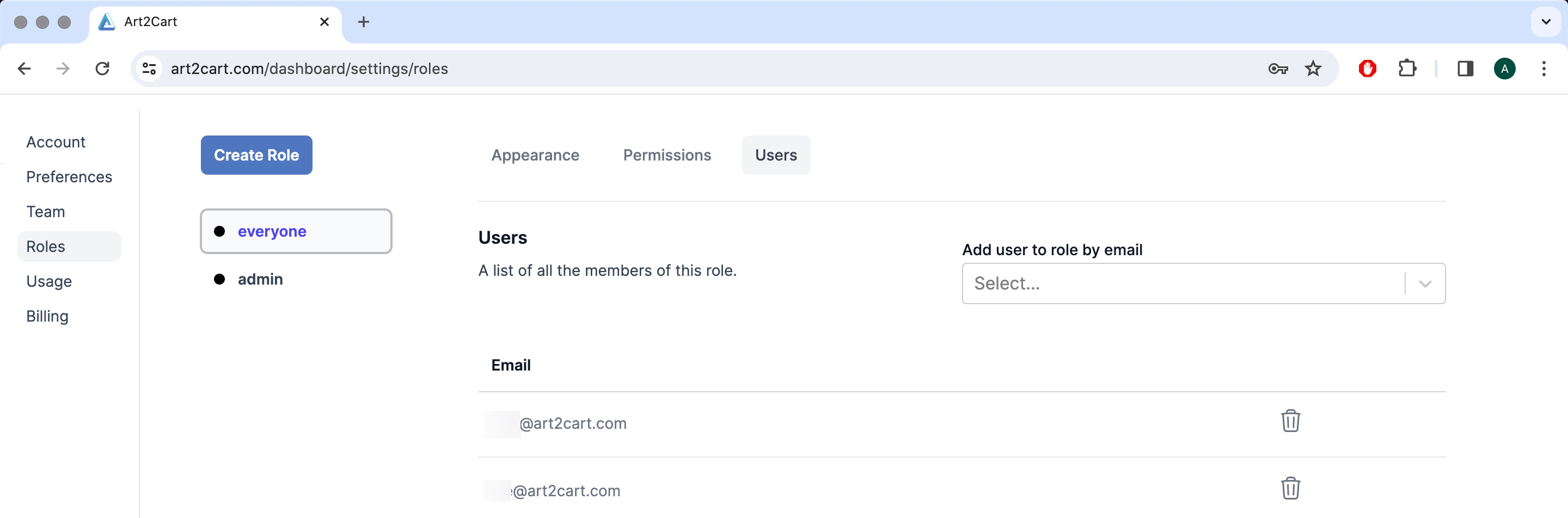
To view which users are assign a role or to modify assignment of roles, click the role name and click on Users. On this page, you add the role to users from your team by selecting the account from the pull down menu. You can remove the role from users by clicking the trash can icon next to the member email in the table.