Listing Wizard
After your designs have been uploaded and your catalog products have been defined, you can use the Create Product Wizard to combine them into listings for your preferred sales channels or export this data into a CSV file for other uses.
- The listing wizard uses merge field variables that incorporate the information saved with each design or catalog product. For example, the description text that is saved as part of a catalog product can be added to your listing by referring to {catalog_description} instead of re-entering all the data.
- Each field in the listing wizard allows you to concatenate field variables with additional static text. For example, you can enter "{catalog_description} This is a limited edition of our standard product" to create a slightly different version of an existing catalog product.
- The fields in the listing wizard are literal so you need to review all the text and mark you enter into the field. For example, {design_title}{catalog_name} is not the same as {design_title} {catalog_name} or {design_title}-{catalog_name}.
- While you can use HTML in all fields (and in the data for designs and catalog products), check first if your desired channel supports listing with HTML. As specific examples, Shopify listings accept full HTML copy whereas Amazon listings do not.
- To save the current listing settings as a template, click Save Listing for Later. Then during subsequent sessions, these settings can be recalled by using the Template menu selector at the top of the page.
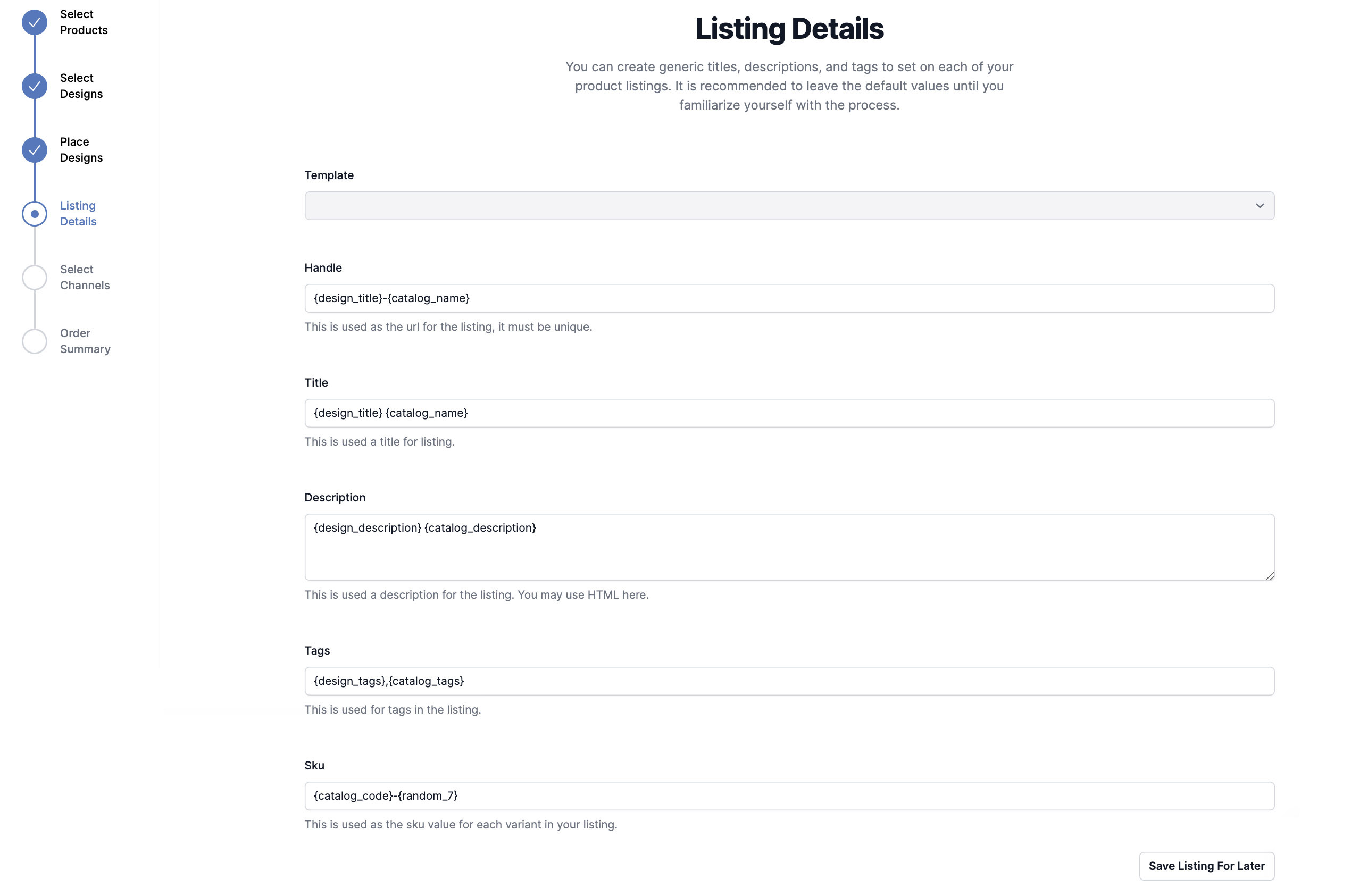
##Merge Fields
The available merge fields are shown in a list near the bottom of the page. Each field variable includes a description of its associated data. The standard fields included with designs and catalog products are shown.
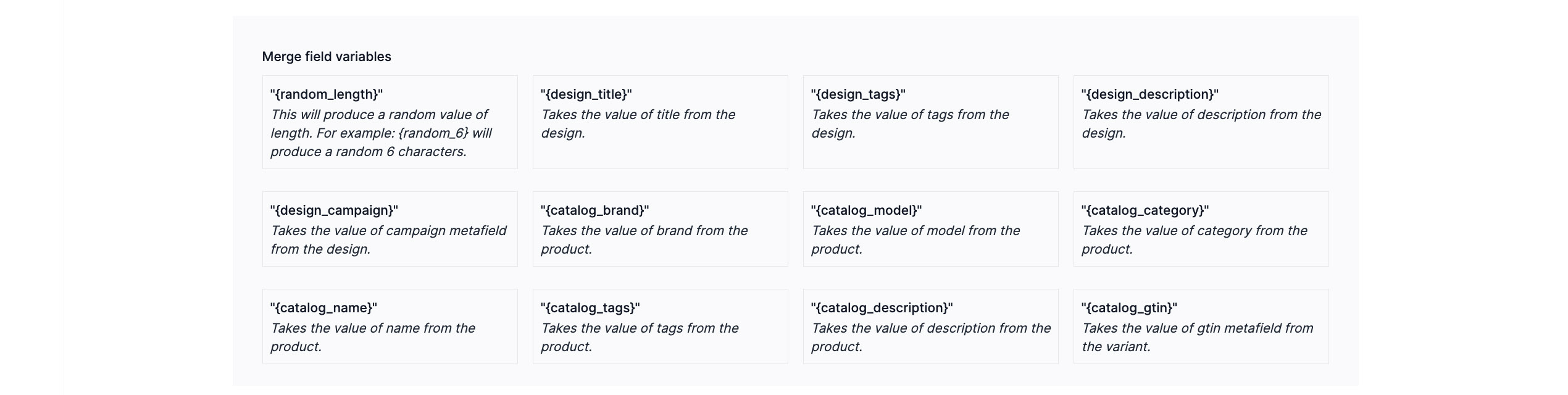
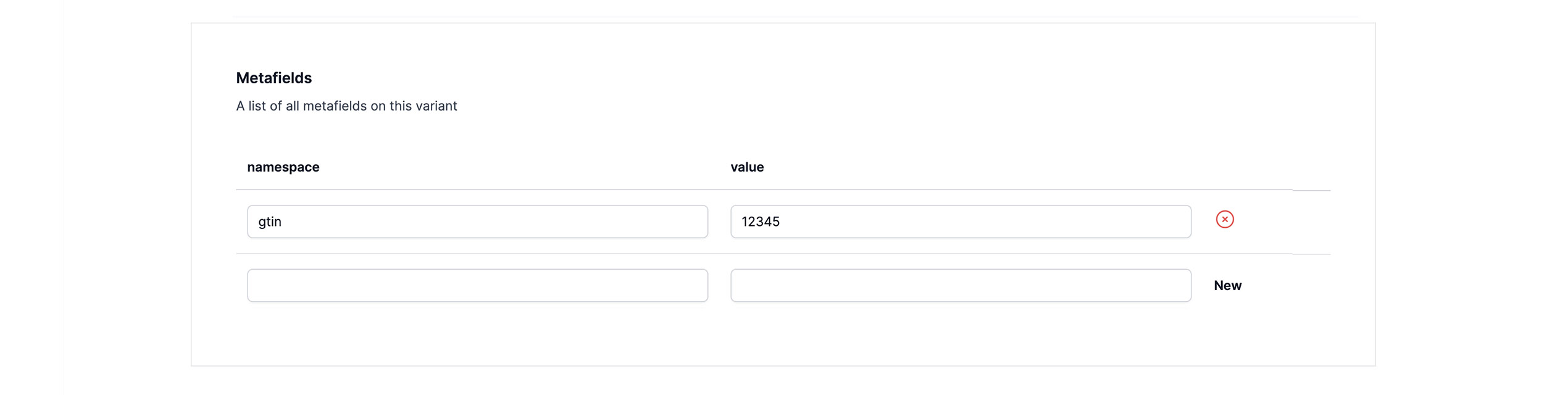
Included with these fields are the customer defined metafields. In the example below, the merge field {catalog_gtin} is created from the catalog product variant metafield namespace gtin.
Random values (numbers and letters) for unique identifiers can be generated with the {random_#} merge field, where # is a number specifying the desired length. For example, {random_6} produces 6 characters. The default setting is that all letters are lower case. However, an additional modifier can be used: {random_#_upper} for all upper case, {random_#_mix} for a mix, and {random_#_lower} for all lower case.