Metafields and Data
Art2Cart includes both preset and custom metadata fields so that you can swap in data dynamically into your output channels AND more. This page is a description of the many preset fields and some of their uses.
Preset metafield are automatically created for each design and catalog product. The standard pattern for these fields is {design_field/namespace} or {catalog_field/namespace}
Design metafields
{design_title}, {design_description}, {design_description}, {design_tags}
Catalog Product metafields
{catalog_code}, {catalog_name}, {catalog_description}, {catalog_model}, {catalog_brand}, {catalog_category}, {catalog_tags}
Custom metafields
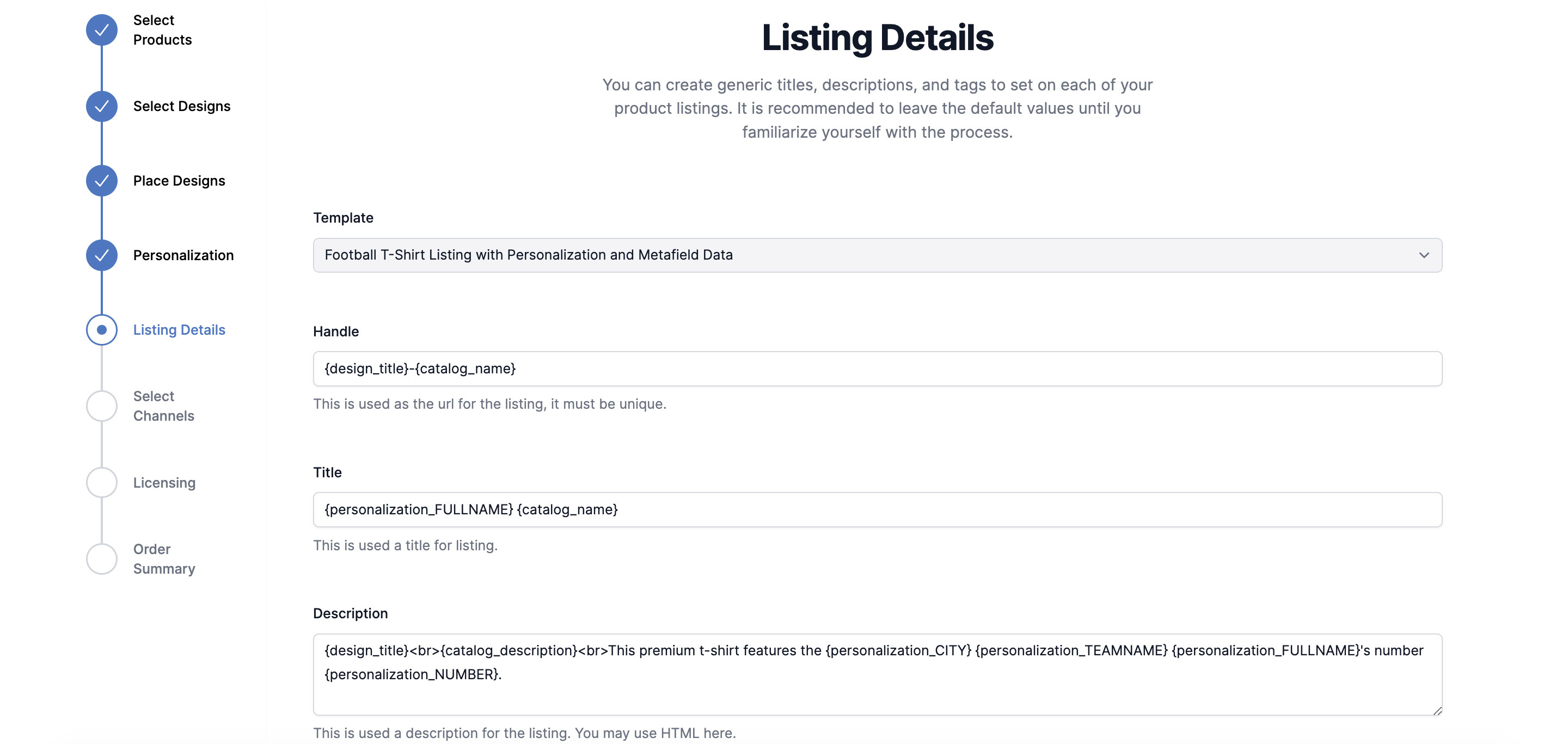
Custom metafields can be created in various methods. The first way is to use the metafields section in the Design page, Catalog Product - Variant page, and Store page. The standard UI to create a Metafield takes a namespace (that is, the name of metafield) and a value (the value of the field). Thereafter, to use the metafield, for example in the listing template, enter {design_namespace} or {variant_namespace}. The store metafields cannot be used for swapping in the listing template.
Special Purpose metafields
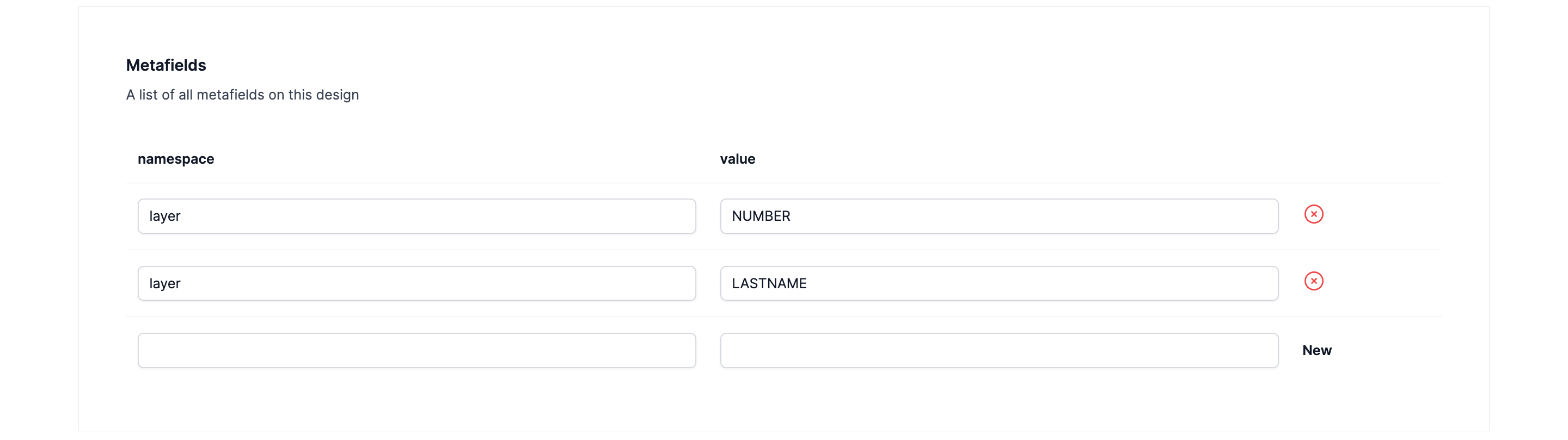
The namespace "layer" is a special Design metafield that can be used to create multiple designs from a base design as one would with a team roster and jerseys. The value for "layer" is the name of the Adobe Illustrator text object that you want to replace in the design file. For more information, read more here.
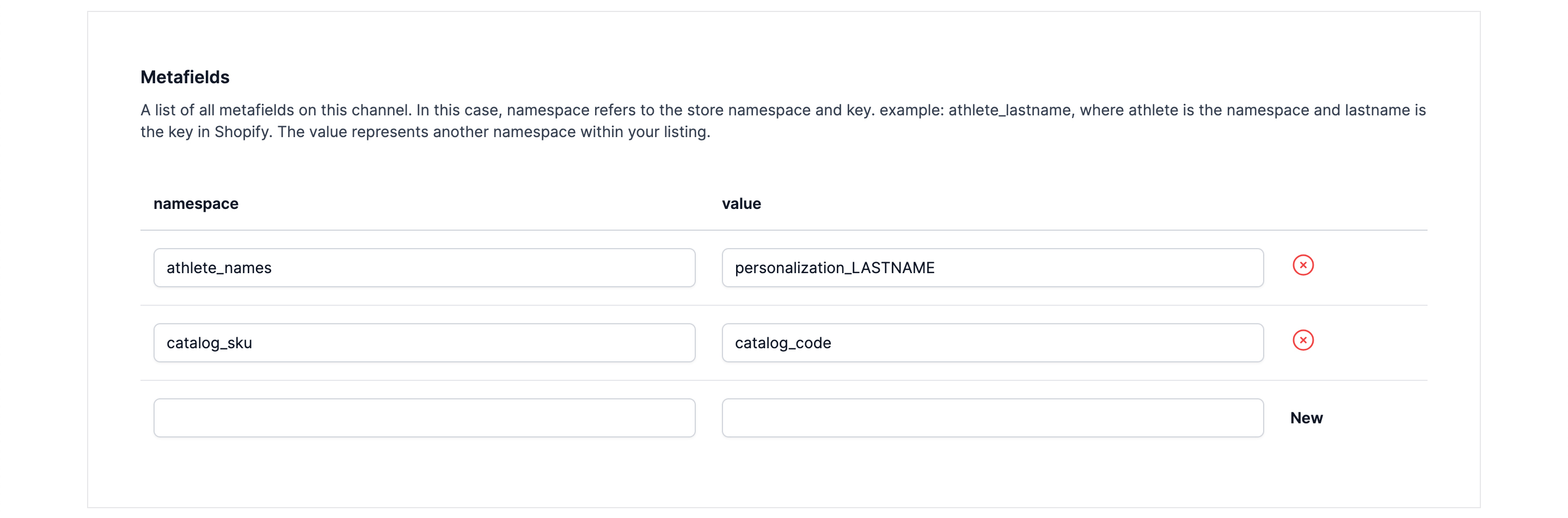
When using Art2Cart with Shopify store, the Store page metafields can be passed into your Shopify listing as custom Shopify metafields. In the Art2Cart metafield namespace, create the Art2Cart namespace with the pattern: ShopifyMetafieldNamespace_ShopifyMetafieldValue and then in the value field enter the desired data to be exported. That data can be a fixed value or an Art2Cart metafield as shown. For more information, read more here.
Personalization metafields
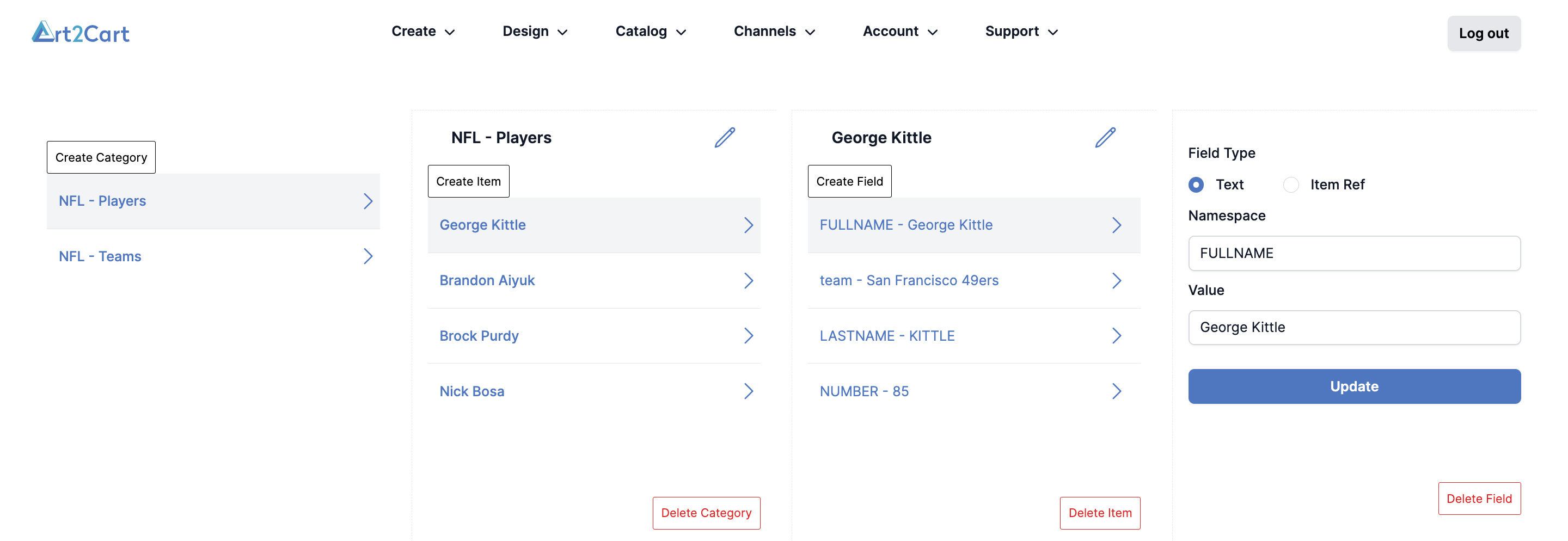
Personalization metafields are created by defining the namespace and values in the Personalization Data page. To access these metafields, enter {personalization_namespace}For more information, read more here.